Account management
Manage Users
Click on Admin on the front page
Go to Users
Click on Add User (oval with grey background)
Enter the username and password and then click Save and continue editing
Warning
If you are using LDAP you should not enter a password.
Add the appropriate global Roles
Add the appropriate Background: Access Restrictions
Add the appropriate general pseudonym lists
Set an expiration date
Click on one of the saving options
Unlock locked Users
There can be different reasons why a user has been locked:
Account has expired: Update the expiration date (see Manage Users)
Too many login attempts: See django-axes
Lost access to second authentication factor: Remove the user’s MFA Keys via the admin interface
Important steps when a user account has been compromised
Check the audit trail: Castellum can be configured to create an Audit Trail that sometimes allows to retrace suspicous behavior.
Reset user tokens: Besides login, some features of Castellum can also be accessed by using a user token. An administrator can delete the token in the admin UI. A new one will be generated automatically.
Customize Roles
Click on Admin on the front page
Go to Groups
Click on Add Group (oval with grey background)
Enter a name for the new role
Add the appropriate permissions (see the list of relevant Annex: Full List of Permissions)
Click on one of the saving options
Two factor authentication
To further protect subjects’ personal data against compromised or weak passwords, Castellum can and should be used with two-factor authentication (2FA).
If enabled, you need to enter an additional code before you can log in to Castellum (similar to a TAN for online banking).
Currently we support any generic TOTP application or FIDO2 hardware security tokens.
Smartphone apps (TOTP)
We recommend to use a 2FA application on your phone. Just ask your local IT on suggestions for appropriate apps to be used at your institution.
Example
By the time of writing (June 2021) the MPI for Human Development recommends its Castellum users to install Google Authenticator for Android or Microsoft Authenticator on iOS.
TOTP stands for “Time-based One-Time Password”. As the name suggests, each TOTP code can only be used once.
Most TOTP apps work the same:
Install an authenticator app on a phone
Register that phone on Castellum with the authenticator app, by scanning a QR Code.
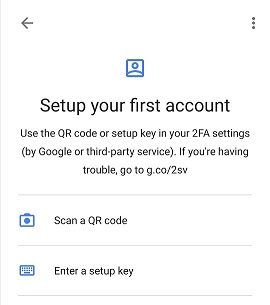
Example from Google Authenticator
The app will now generate a new 6-digit numeric code every 30 seconds
Whenever you want to log in to Castellum, you will need to input this numeric code, along with your private password.
The code depends on the current time, so make sure that the phone has the correct time set
Hardware Keys (FIDO2)
You can also chose to use FIDO2-based hardware keys (tokens). In that case we recommend Yubico FIDO2 tokens, but any FIDO2-compatible token should work.
The tokens are connected to your device with USB and, when registered successfully, usually just require a tap / key press when prompted on login.
To register your FIDO2 hardware key:
Insert your hardware key in any USB port.
When prompted by Castellum, click “Register security key”.
When prompted by Castellum, press your hardware key to complete its registration.
Blocking lost or stolen devices
If your phone or hardware key has been lost or stolen, you should remove that key from Castellum so it can no longer be used to log in. You can either do that yourself by using another key that you have registered (e.g. a recovery code), or by contacing your local IT department.