Study recruitment
It is possible to find potential subjects for a study from the pool of subjects that have been entered into Castellum. They can then be contacted either manually or automatically via email. Subjects are only considered if they have given consent to recruitment and if their recruitment attributes match the filters that have been defined in the study.
Set up a study for recruitment
Castellum offers three features to restrict which subjects are considered for your study:
Attribute filters
Excluded studies
Text based inclusion and exclusion criteria as part of the recruitment text
In the study settings, go to the Recruitment Settings tab
By default you will see the General recruiment settings:
The Recruitment text will be shown to recruiters and will be used by them to recruit subjects for your study. Use this for any criteria that have to be checked manually.
Decide whether you want to use advanced filtering. This allows you to set up multiple filter groups. Subjects will be considered for the study if they match any of those groups.
Decide whether you want to use exclusive subjects. If you enable this option, potential subjects for your study cannot be recruited for other studies. Please note that this may prevent other researchers from finding enough participants.
Decide whether you want to restrict your recruitment to complete filter matches only. This excludes subjects with unknown attributes. It is recommended to leave this off and try to complete the missing attributes, both to improve the database and to increase the pool of potential subjects.
You can restrict subjects based on a maximum number of reliability issues to filter out unreliable subjects.
You can restrict subjects based on last activity, e.g. to prioritize subjects who have recent experience with your organization.
Note
Session types may come with specific criteria that have to be checked every time before appointing subjects to a session. In this case, you’ll see a caret with a label Criteria for: <type> next to the recruitment text. Clicking on it will show you the text that is always appended. In other words: You don’t have to write this type specific text by yourself.
By clicking on Filter you are able to set filter criteria
select the attribute that should be used for filtering
click Add
define the filter
click Apply
You may set as many filters as you like.
Sometimes you need to define more than one group of suitable subjects (e.g. age 20-30 and age 50-60). For this, you have to activate advanced filtering in the general recruitment settings (see above).
In Other studies you can select certain studies in which your subjects must or must not have participated
To allow recruiters to send batch invitations via email, proceed as follows:
click on Mail Settings
define an Email subject
add an Email body
This email will be sent by recruiters at study recruitment by specifying the amount of recipients. Yet, you can check the appearance of the set up mail by sending a test mail to yourself with corresponding button.
Note
It is not intended to send email attachments via Castellum. Instead, links can be inserted as standard text.
Set Recruitment Consent for a Subject
In subject management > subject details, go to the Data protection tab. A box at the top shows the current consent. created subjects initially start with No consent.
Click on the button Change.
Select either Consent declined/withdrawn or the consent document the subject has agreed to. In the latter case, you can also upload a signed copy.
Note
Please be aware that subject maintenance lists persons without recruitment consent. Hence, they may be deleted after some time waiting (if no other legal basis is given).
Maintain Recruitment Consents
To get an overview of all subjects for whom a new Recruitment consent is required, proceed as follows:
Click on Subjects on the front page
Go to Maintenance
Choose the Consent tab. You will see a list of all subjects with outdated recruitment consents.
Click on Details of a listed subject (opens in new browser tab)
Refer to Set Recruitment Consent for a Subject once you have found a subject for which you want to set consent.
Manage consent documents
Upload a new document
Click on Admin on the front page
Go to Consent documents
Click on Add Consent Document (oval with grey background)
Choose the file you want to upload
Click on one of the saving options
Now whenever consent is added to a subject, the user can pick this new version from a list of all available documents.
Deal with the old document
If there have been significant changes to the document, the old version may no longer be a sufficient legal basis to keep subjects in the database. In that case there is a two step process:
Mark the old consent document as deprecated. The document is still considered valid but subjects who have agreed to this document will show up in the consent maintenance view (see below).
Mark the old consent document as not valid. Now all consents related to this document are void. Subjects who have not been updated to another document are no longer available for recruitment and will potentially show up in the data protection dashboard.
The legal basis for each subject can be found in the subject detail view.
Manage Attributes
Castellum does not dictate a fixed set of recruitment attributes that can be stored. Instead, it allows to define your own attributes.
However, that flexibility comes with a cost: There are certain limits to what you can define and migrating existing data is not that simple.
Create Attributes
Click on Admin on the front page
Go to Attributes
Click on Add attribute (oval with grey background)
Select an appropriate Field type that should be used for the attribute
URL can be used to link to a formal definition. It is currently only used when exporting the attributes in BIDS format.
You can restrict this attribute to only be available for subjects with a minimum privacy level.
Order and Category can be used to position the attribute in the UI
Statistics rank allows to include this attribute in recruitment statistics. There can only be one of each, so you may have to deselect a primary or secondary attribute before selecting a new one.
Label should be the actual name of the attribute.
Filter label can be useful if you want to use a different label for the filter. Otherwise this can be left blank.
Help text can be used to provide additional hints to users.
If appropriate, fill in all possible values as Attribute choices. The options Declined to answer and Unknown are available by default, so there is no need to create them explicitly.
Be sure to provide translations for label, help text and choices if Castellum is set up to support more than one language
Change Attributes
While changing informational data such as label and help text is safe, changing behavior (field type and choices) usually requires custom data migrations. There is currently no special support for attribute migrations in Castellum. However, it should be possible to create such a migration using the available django interfaces.
As a general rule, we recommend creating a new Attribute and deprecating the old one over modifying an existing one.
When you delete an attribute, all related data will automatically be deleted along with it. Note that filters which use this attribute will also be deleted.
Recommendations for Attributes
Though it may be tempting to store all kinds of meta data about subjects, you should stick to a small set of attributes that you actuallt need for filtering. Before adding one, you may want to consider the following check list:
Is the attribute needed for more than one study?
Do you have the ressources to gather and maintain this data?
Will the data stay relevant or will it change often?
Does the benefit of storing this data outweigh the risk for subjects in case of a data leak?
Recruit subjects via phone
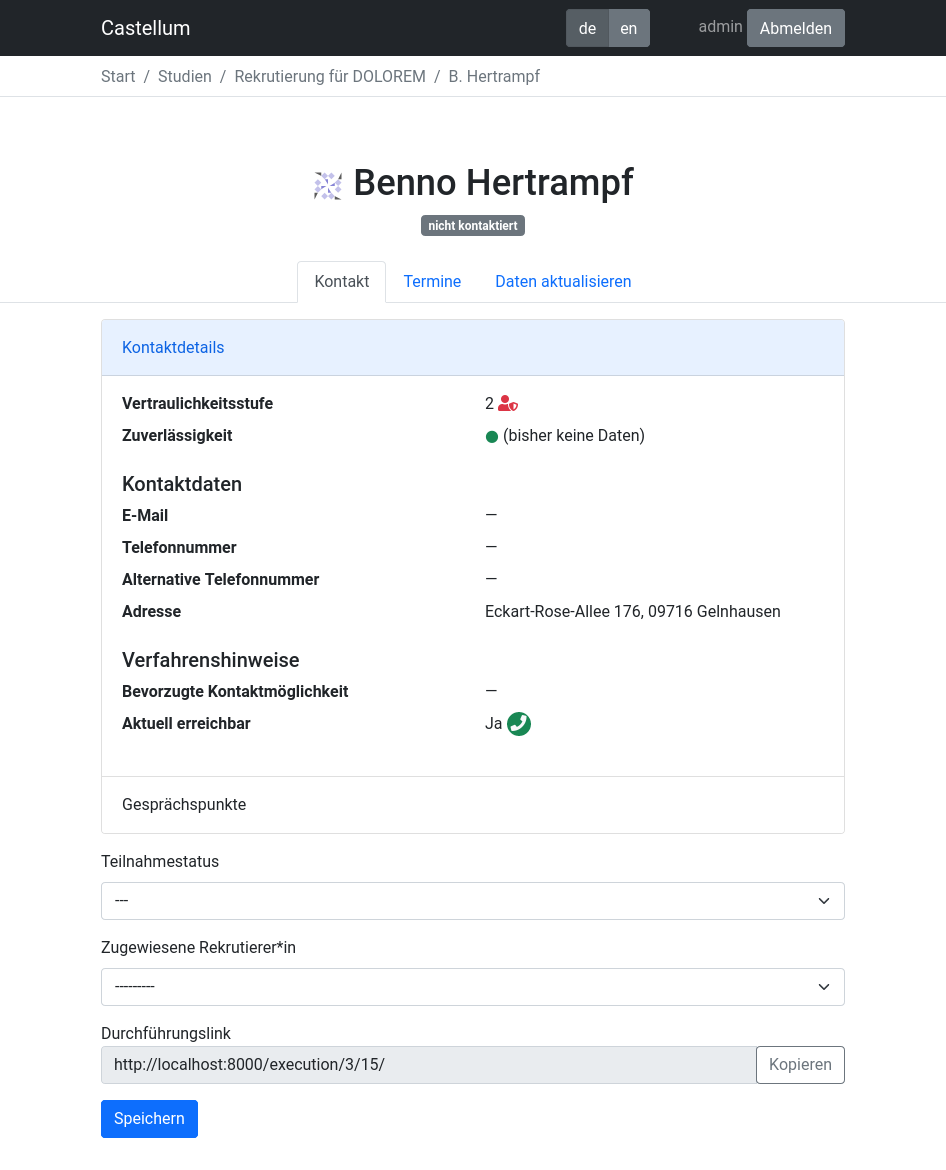
Click on Studies on the front page. If necessary, you can use the filters in the sidebar to narrow down the list of studies. For example, you can select Execution in the field Status to only show studies that are currently recruiting.
Click on Recruitment next to the study you want to recruit subjects for
By clicking on Add, relevant subjects will be shown to you
Press the Contact button to contact the person you want to reach
Email, Phone number, a potential Phone number alternative and / or the Address will be shown to you in the tab Contacting details.
Decide whether you want to contact this subject. While many conditions can be checked automatically, some things have to be checked manually. For example, consider the Reliability and check the Talking points that the study coordinator has provided.
Contact the potential subject using one of the listed methods
When you received a response from the potential subject, select a Status of participation
Choose between:
not reached (Please note the appointment in the calendar)
follow-up scheduled (Determine the date and time of the recall appointment below)
awaiting response (This may apply if you left a message on the answering machine or if you sent an email, and want to wait for a response.)
recruitment mail sent (This may apply if you sent a mail, but might want to make a follow-up phone call)
participating
excluded (This may apply if recruitment attributes of the person do not comply with the requirements of the study, if a person is not interested in the particular study or if a person is not available during the data collection of the study)
Click on Save
Recruit subjects via mail
Note
Recruitment via mail is only possible if it has been configured by the study coordinator.
Click on Studies on the front page. Then click on Execution in the field Status to only show studies that are currently recruiting.
Click on Recruitment next to the study you want to recruit subjects for
Go to the Mail tab
Enter the number of subjects that you want to contact
Click Send
Hint
The section Previous mails will appear after you have sent your first batch of mails. It lists all contacted groups allowing you to remind those potential participants of a group who did not respond yet. Please note, that this reminder can only be triggered once per group. It will send out the current invitation mail text with a prefixed email subject indicating it as “Reminder/Erinnerung”.
Cleanup open list in recruitment
The open list in study recruitment can become quite large and noisy if you are waiting for many responses and/or failed to reach many potential participants. Therefore, Castellum provides a cleanup feature:
Scroll down to the end of the open list in recruitment and click on Cleanup
Decide if you want to cleanup the complete open list (All) or only those potential participants whose status has been Awaiting response for 10 days or more. The third option allows you to exclude subjects who would not be added to the list with the current settings (Unsuitable). This last option can be relevant e.g. if the filters have changed since recruitment began. A click on either of these buttons will start the cleanup process.
After cleaning up, the affected potential participants will be moved to the Excluded list with the additional badge Excluded by cleanup. This allows you to reconsider contacting some of them later.
A common way how the recruitment list becomes noisy is by mail recruitment. Thus, Castellum additionally allows to cleanup by mail batches:
Go to the Mail tab in recruitment and select an appropriate entry of the Previous mails list. Select Cleanup.
Confirm that you want to cleanup all potential participants of the mail batch who did not respond.
Check if a subject has been blocked in the past
Studies may be able to cooperate with public institutions to contact potential participants who are not in the database yet. However, you may want to skip subjects who have already been excluded in the past. Castellum provides a Block List that allows you to do exactly that.
Click on Subjects on the front page.
Click on Block List.
Enter the first name, last name, and year of birth of the person in question
Castellum will tell you if there is any data that suggests that this person should not be contacted.
To check a list of people, switch to the Batch Mode and follow the instructions.
A person will show up as blocked in any of the following cases:
There is a matching entry in Castellum and they have explictly rejected recruitment consent.
There is a matching entry in Castellum and the have been blocked for inappropriate behavior.
There was a matching entry and during deletion, the option “Block this subject from future recruitment” was selected.